


Fixing a Slow iMac
Replacing an iMac's HDD with a new SSD to revive it's speed!
Overview
My parents iMac had become extremely slow in daily use. After confirming this sluggish performance myself, I determined the culprit to be the mechanical drive component of Apple’s Fusion Drive due to it’s slow access speeds. The solution required physically opening the adhesive-sealed display, replacing the drive, and reassembling the system. After this, the system performed better than new!
Key steps in the process:
-
Researched system configuration to identify performance bottleneck and determine required tools and materials.
-
Cloned disk image from old Fusion Drive to the new solid-state drive.
-
Removed adhesive-sealed display to access internal components.
-
Replaced old hard drive with new Fusion Drive.
-
Reapplied new adhesive and attached screen back onto iMac.
-
Tested iMac after operation to verify performance improvements.
Preface
This post isn’t meant to be a step-by-step tutorial. Instead, it’s a documentation of the process I went through as well as the complications I had along the way for portfolio purposes. If you would like a concise tutorial, I recommend to look elsewhere. Luckily, there are lots of helpful resources!
-
How to Upgrade the Main Drive in a 27-inch iMac (Late 2012 – 2019) by One World Computing
-
How to Install a New SSD and RAM for iMac by The BeefMaster
-
iMac Intel 27” Retina 5K Display Hard Drive Replacement by Sam Goldheart
Diagnosis
This machine, a 2019 27-inch iMac, exhibited particularly slow speeds for a significant time window after startup, when opening new programs, and browsing files. Given the symptoms, the storage system seems to be the primary suspect, as these are all times when disk access is especially frequent.
This model shipped with Apple’s Fusion Drive (32 GB SSD + mechanical HDD), rather than a full SSD. Despite the speedy SSD segment of the fusion drive, the mechanical drive still seems to be a persistent bottleneck, especially when taking into account modern software and operating system demands.
What is a Fusion Drive?
Many of these iMac models (including this one), featured a “Fusion Drive” option. A Fusion Drive combines the large but slow storage capacity of a traditional hard disk drive with a small storage capacity but fast performance of a solid-state drive into a single logical volume: a Fusion Drive. Ideally, operating system files and frequently accessed files are held on this small segment of solid-state data (32 GB, in my case), while the large portions of data (files, documents, pictures) that don’t need to be accessed as frequently are held in the slower but vast portions of the hard disk drive. However, the performance of these Fusion Drives have been criticized. It just cannot compete with solid-state speeds.
Solution
I deemed the mechanical disk to be the limiting factor, and hypothesized that a full SSD replacement would surely remove this bottleneck. After seeing the speed of this thing after the operation, I’m confident my hypothesis was spot on.
Tools and Materials
-
Solid State Drive
- Bigger or equal volume compared to old drive.
-
External SATA Connector
- This is used so you can connect your new SSD to the computer to wipe and clone the HDD onto the new SSD.
-
SSD Mounting Bracket (could be optional)
-
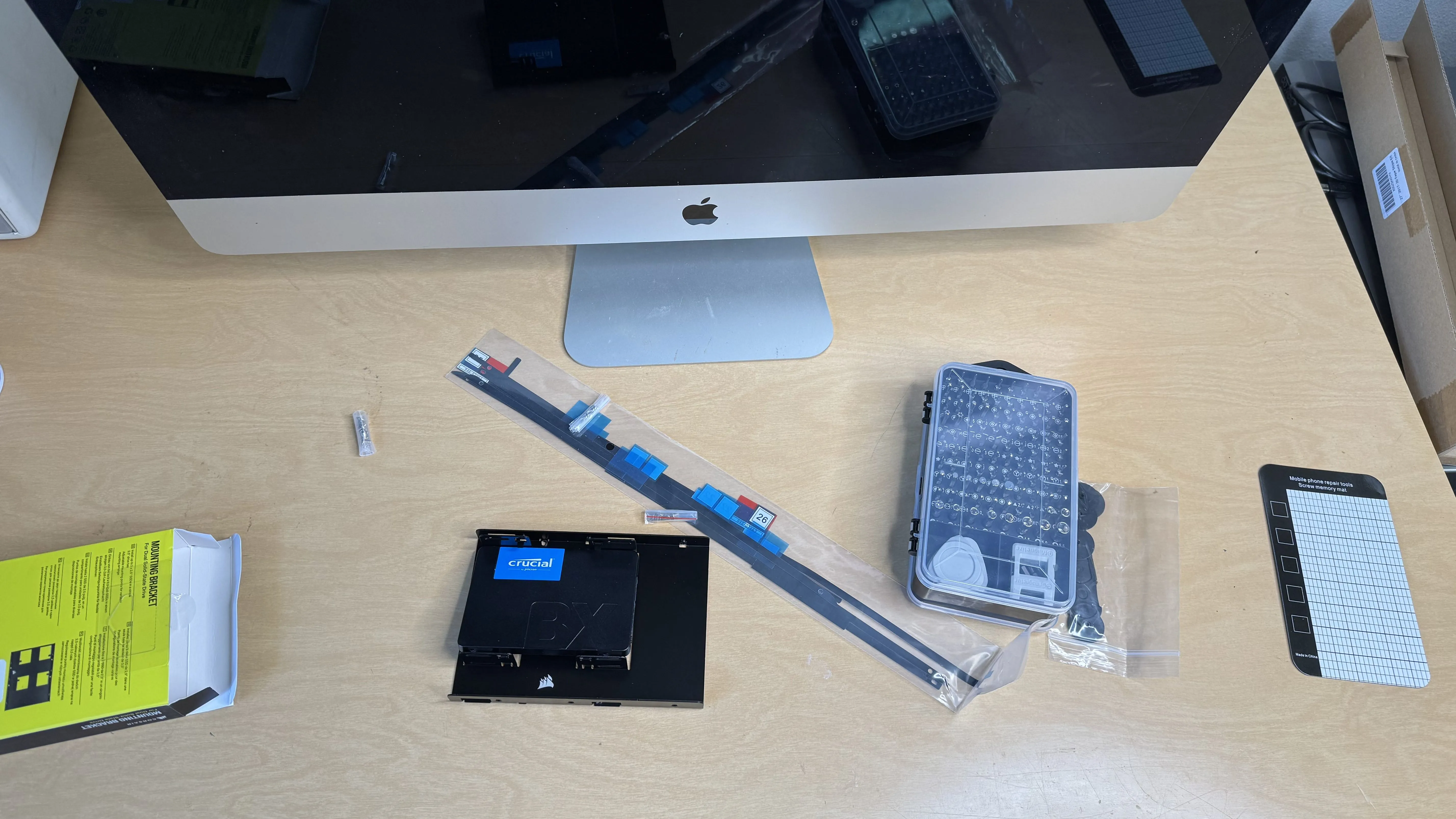
Torque 8 & 10 screwdrivers
-
Replacement Screen Adhesives
- Fits exact model, should also come with online guide to fitting with that model. In my case, I got a knockoff brand that worked perfectly with iFixit’s online fitting tutorial.
-
Screen Opener Tool
-
Other Helpful Tools
- Suction cups to pull screen off, packaging tape to stabilize screen when reapplying it, screw holders
The Operation
Getting to Know the Enemy
Before buying my needed tools, I needed to ensure everything would be compatible for this model of iMac. I verified the exact model of this iMac and used that to order the correct adhesive strips (important!!!). I also got an understanding of the Fusion Drive system currently in place, and found the hard disk bay to be a 3.5 inch configuration, thus a mounting bracket would be proper.
I evaluated total used storage (~300 GB), and chose a 1TB SSD to maintain headroom for future growth. I also noted that the current users mainly use cloud storage for large videos and images, so 1TB is more than enough while not biting the wallet.
Migrating The Data
To minimize obstruction and confusion for my clients (parents!) I decided it was best to clone the old drive and data rather than make a whole new install. It also made it easier on me.
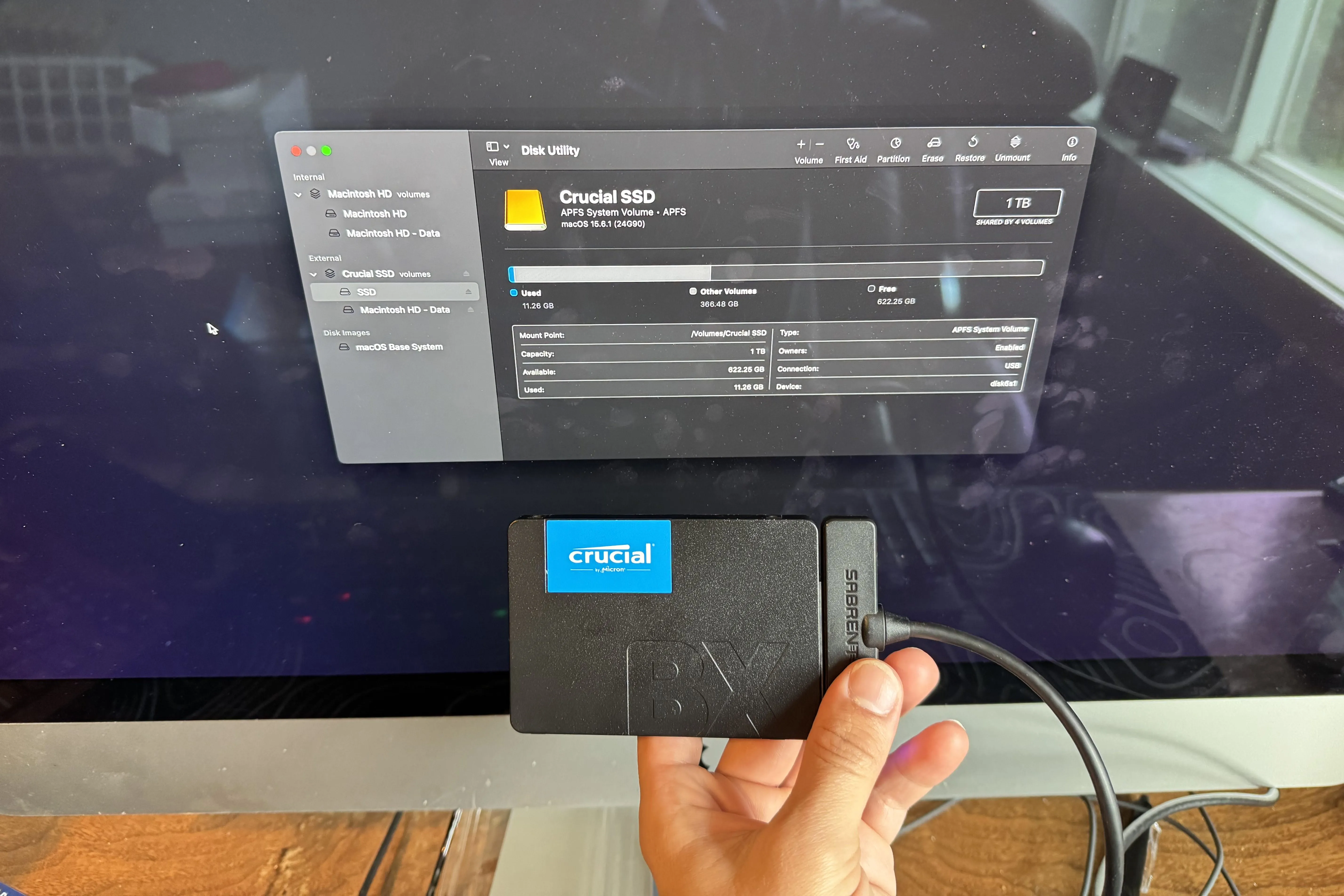
I used the built-in macOS Disk Utility to transfer all the data from the fusion drive to the new SSD using a USB to SATA connector. It was a bit more complicated because the Fusion Drive is a single volume of 2 other volumes, so I had to make sure I transferred the correct parent volume that contained all the data.
To make sure it worked correctly, I booted the system from the SSD before the operation.
Opening the iMac
Once everything was set, I opened the iMac using the rotating cutting tool. A fixed metal blade wasn’t recommended as it might damage components near the edge like the microphone/camera. A small suction cup tool was also used to help pull the screen off of the iMac.
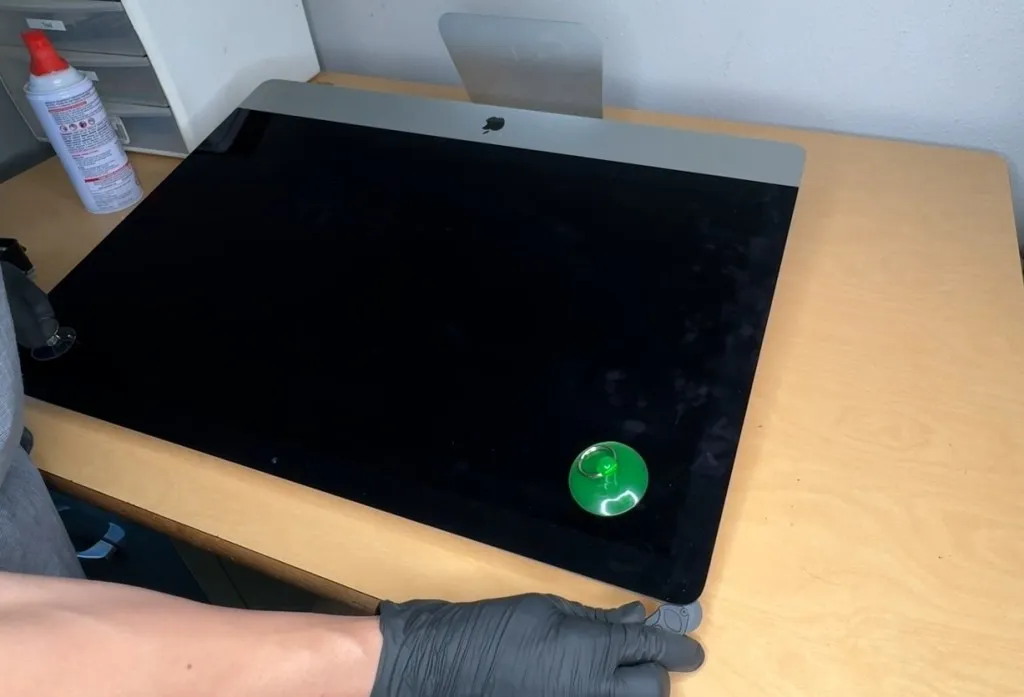
Based on research, I knew there was a ribbon cable and another cable attached to the screen, so I payed extra attention to disconnect before removing screen. Be very careful with the screen! I made sure to place the screen on soft even surfaces. I’m sure that thing costs good money.
There’s still adhesive on the screen and iMac that needs to come off, so I used a scraper tool to remove it from both the mac and iMac. Very satisfying!
Replacing HDD with SSD
The hard drive is mounted in the iMac using small pins placed into the screw holes on the iMac, which can be removed using a T8 screw. These 4 pins help insert into 2 mounting brackets on either side of the hard drive, only 1 of these brackets needs to be removed. After removal of the left bracket, I could pull the hard drive out of the iMac and remove the pins to ready it for the SSD.
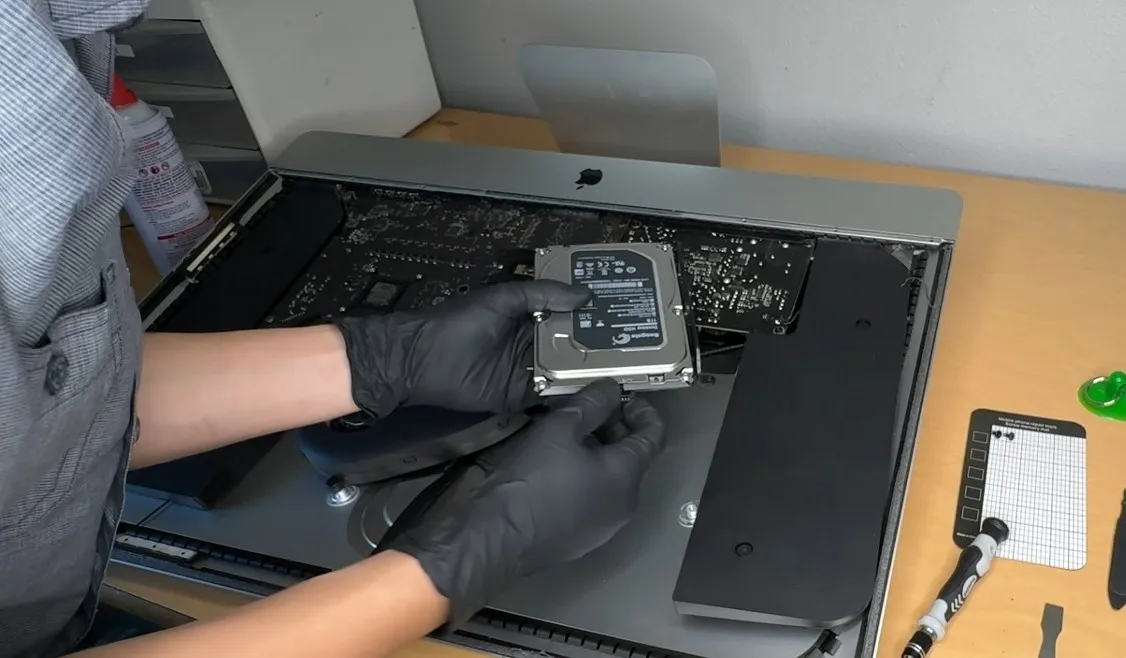
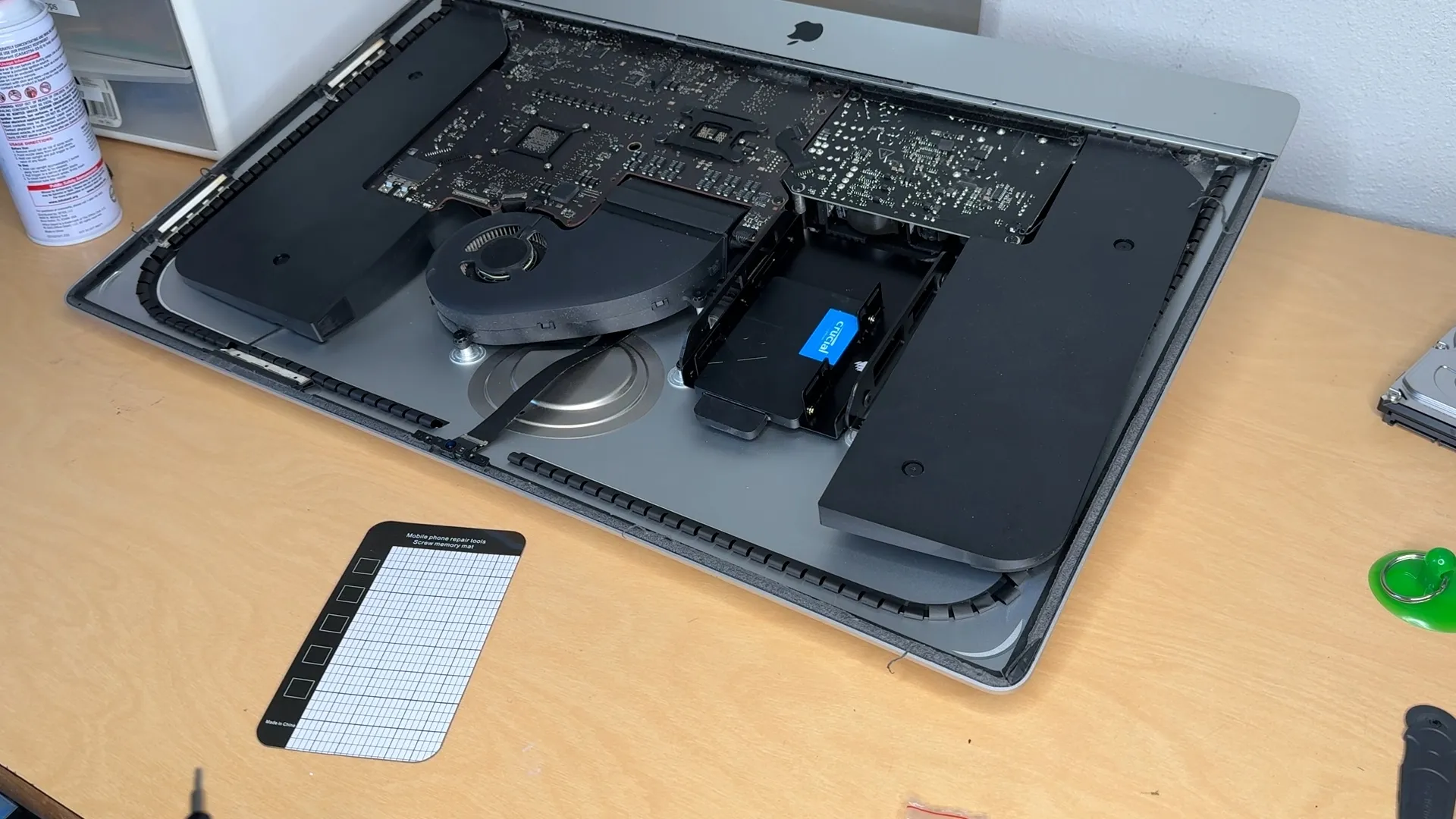
I attached the 2.5” SSD into the 3.5” converting bracket, and using the old pins and side brackets from the HDD, I placed it into the iMac just as the HDD had been before, and moved the black spacer back into place.
Test It!
If I just put the iMac back together now, if I discovered any problems later on, I’d have to tear out the brand new adhesive and do it over again. That’s like at least 30 bucks. And I’m glad I did test it, because I ran into a bit of a problem.
The Problem
When I tested, the system initially failed to recognize the new SSD as a start-up drive, even though the cloned SSD had a macOS installation and was certainly plugged in correctly.
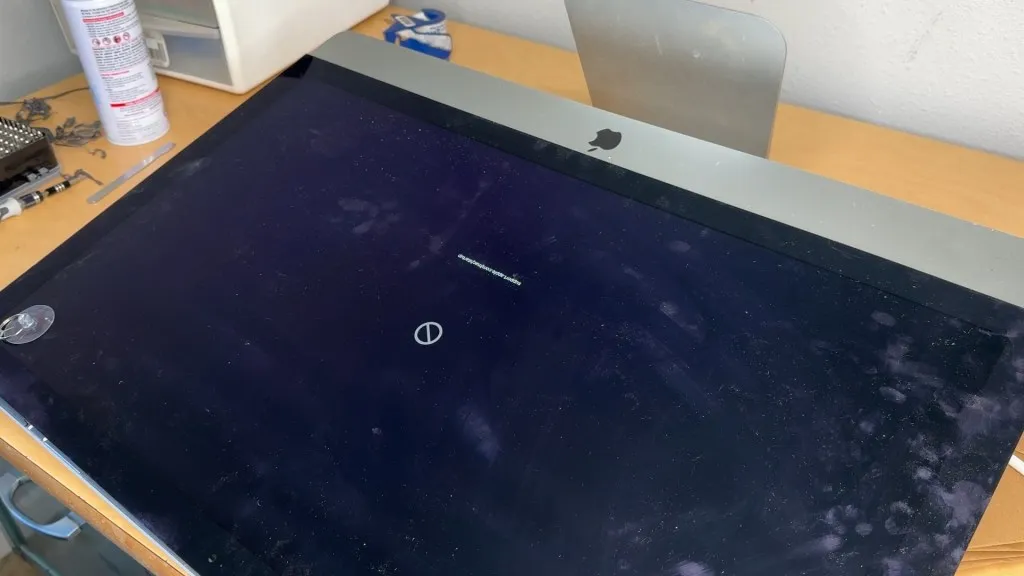
It turns out, the drive must be set as the start-up drive in order for it to be recognized as bootable. Usually with other computers, I’m used to the system booting from whatever bootable device it was able to find, but for iMac apparently it must be configured beforehand. This was no issue, I just went into the startup manager and selected the new SSD as the start-up drive. The iMac then booted normally!
Although this was an issue that would be fixable if I did seal up the screen anyways, it’s a reminder of how much can unexpectedly go wrong!
Reattaching the Screen
This is when I needed to confront model-specific install instructions for the new adhesive strips, as models come in different sizes and shapes. The seller of my new adhesive strips (or rather what the knock-off brand was based on) had a guide just for it.
Once you have your strips laid out and planned, I used 2 pin-like screwdrivers to hold the tape in it’s guiding holes, and guided them to the corresponding holes in the iMac. This lets me be more accurate in insertion.
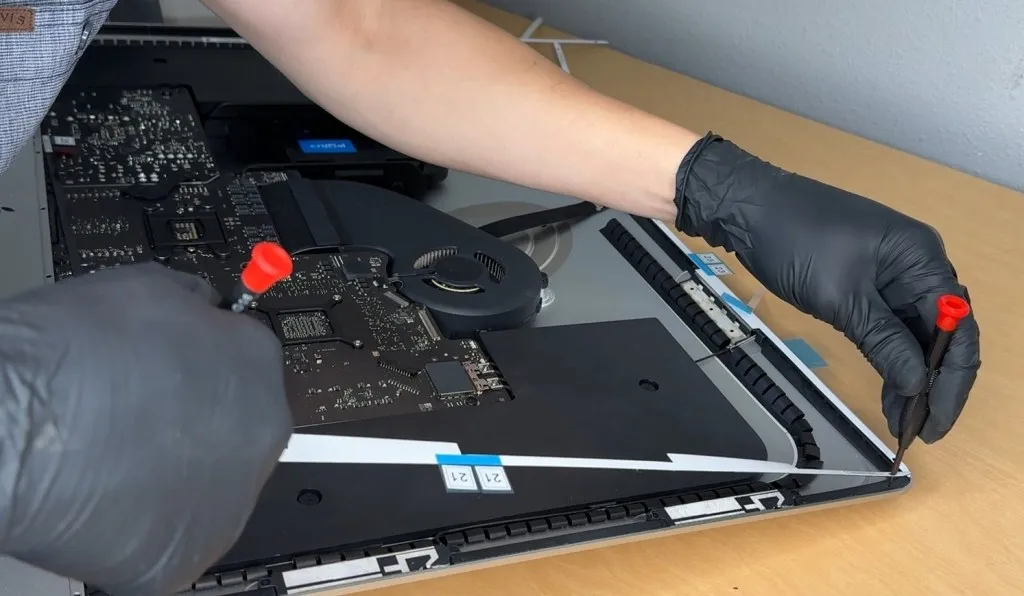
In my experience, don’t get too perfectionist with it. It’s going to be off by a little bit and that’s fine. Just be careful around crucial components like the camera, and preferably don’t let it sit outside the iMac enclosure.
This next part requires dexterity, finesse, or tape. I got one of those.
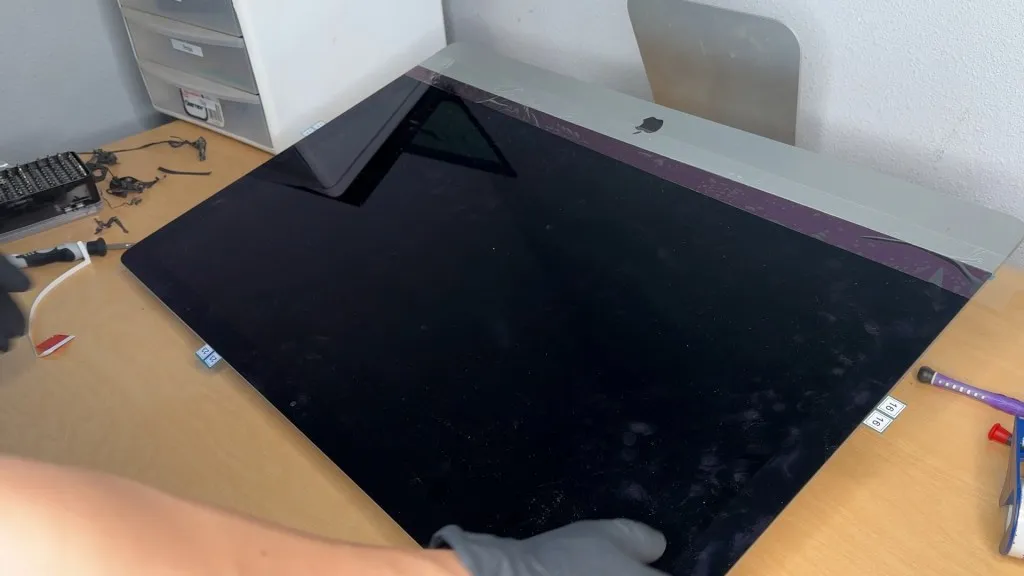
I first aligned the display onto the iMac, and placed tape on the bottom edge of the iMac display, half on the display and half on the bottom face of the iMac. This will keep it in place and help it rotate around a singular point, ensuring a more even closure process.
Right now is a good time to take a microfiber cloth and quickly clean up the glass behind the camera in case it got a bit dirty.
Next I peeled off the sticker on the bottom adhesive strips as they would be hard to reach later. Then, I connected the display cables, very important! Make sure to attach the 2 cables otherwise it won’t work and you gotta open it up again! After removing the sticker and revealing the rest of the adhesive, I gently pivoted the screen with help from the tape and closed iMac as evenly as I could.
In the end, my placement was off by just a little bit. You can’t see it but you could feel it if you touched the corners. My client didn’t notice at all so it was fine, however they did notice when I told them about it. That is a new rule I have in repair 101, don’t admit errors that won’t be noticed!
Finishing Up
Next was just a matter of cleaning up and testing. To ensure a solid seal on the adhesive, I used a microfiber cloth to apply pressure around the edges of the screen, as well as to clean the screen.
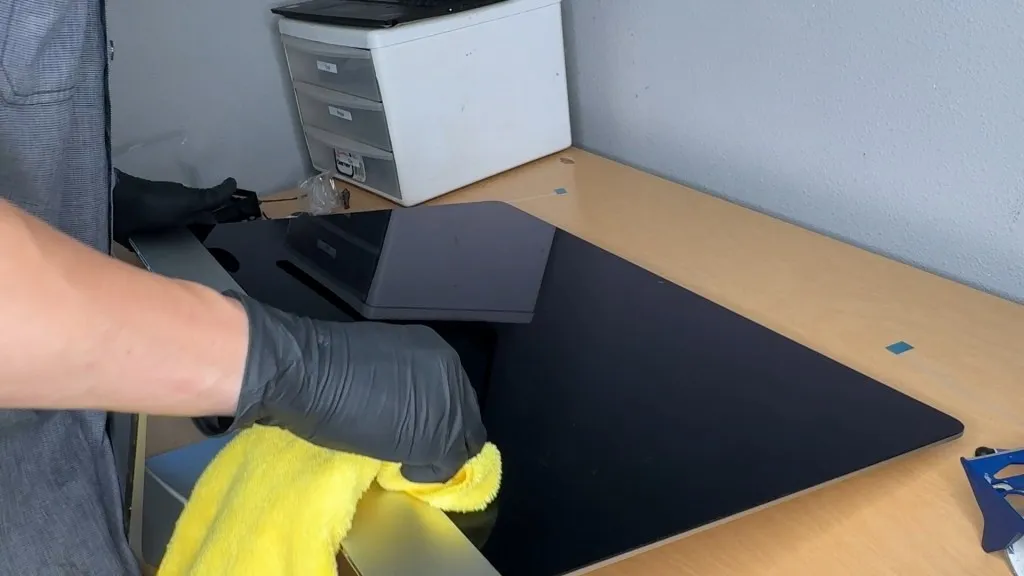
I’m sure you could also put a mildly heavy object on the screen to put pressure over a long duration to ensure a stick, but I was worried I might crack it somehow. Even without doing this, the seal was solid and it stuck well.
Collect Feedback
In any repair, a crucial step is not only to do some testing yourself to make sure the fix works, but to collect feedback from the client to make sure they are satisfied with the solution.
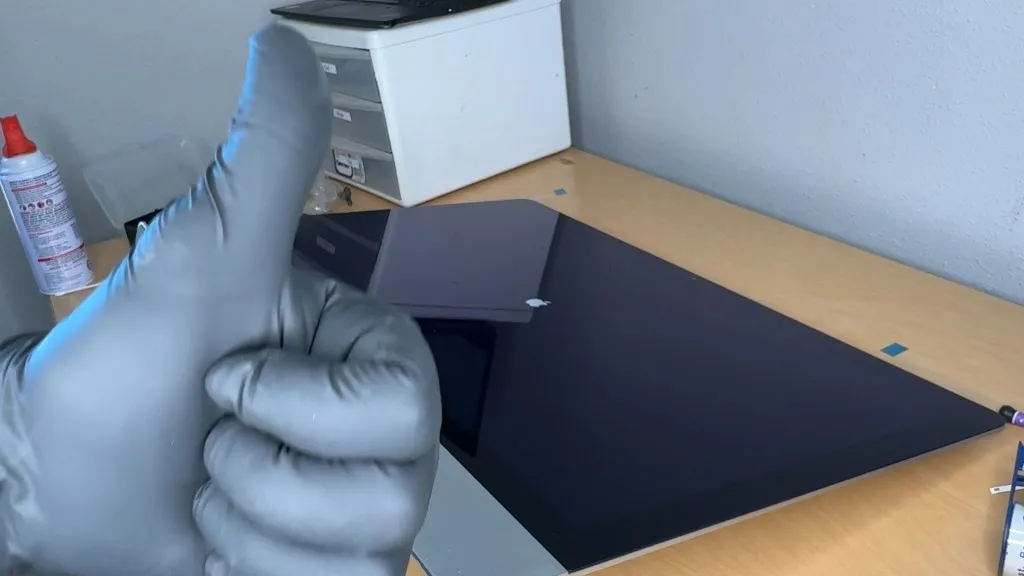
In my case, I saw much faster load times and much more responsive behavior, and my parents (clients) had said so as well!
Conclusion
This was a bit worrying of an operation for me. It’s not exactly a cheap computer. Additionally, it’s a crucial part of my clients lives, so breaking it or putting it out of service for a long time could be disruptive. This would be no matter if it was an easy operation, but the nature of adhesives make things a bit more nerve racking than if it accessible by screws. The shape of the iMac also doesn’t make things easy, as sometimes I had to create makeshift jigs and cushions to keep it in a workable position or protect the screen.
Though in hindsight, it was a very doable operation. When things are planned out and you have the right tools, it makes things much simpler.
In the end, the difference was immediate. Tasks that previously lagged, even something as simple as opening Finder, became fast and responsive. The system finally performed the way a 2019 machine should.
While this iMac may have originally been a lower-spec, budget friendly configuration, replacing the mechanical drive removed it’s biggest bottleneck. The upgrade delivered performance comparable to a higher-spec SSD-equipped model, at a fraction of the cost of having bought a higher-priced configuration from the start.